2026 Tutorial: Installing WordPress on a 1C1G VPS with aaPanel (BT English Version) Using OpenLiteSpeed Without MySQL

Recently, I saw a post on the NS forum asking how to optimize WordPress rendering speed from 2 seconds to under 1 second. My immediate thought was the OpenLiteSpeed + SQLite solution. Firstly, because OpenLiteSpeed is built for extreme WordPress acceleration, and secondly, using OLS + SQLite on a low-performance VPS can maximize server resource savings and deliver a noticeable speed boost.
Issues with Installing OLS via aaPanel
However, after I replied, the OP mentioned that the OLS they installed wouldn't run. I promptly tested on my own Alibaba Cloud 1C2G VPS and found that the OLS installed from the aaPanel app store indeed failed to run. Since OLS itself is quite complex to install with many configuration steps, a method I tried years ago didn't succeed.
My Previous Self-Taught Method for Installing OLS via aaPanel
- First, install WordPress in a standard LAMP environment.
- Uninstall Apache and PHP, then install OpenLiteSpeed.
- Access the WordPress backend with OLS + MySQL.
- Install the Performance Lab plugin in the WP backend and choose to switch the database to SQLite.
- Uninstall MySQL.
After some research, I discovered the issue: the OLS version in the aaPanel app store is v1.7.17. This version was released around the same time as Debian 12 but clearly doesn't support it. I couldn't find much more information online, though some posts mentioned that OLS 1.7 can only be installed on older systems like Debian 7/8 or Ubuntu 12/14/16. Since the oldest image available in my VPS backend was Debian 11, I tested it and found the problem persisted.
Later, someone on the aaPanel forum mentioned that the English version of aaPanel uses OLS v1.8. However, there were also many posts reporting that installing OLS via the English version also had startup issues. As a last resort, I reinstalled my VPS with Ubuntu 22 and tried the English version, aaPanel. I found that following my previous installation logic worked perfectly, with only minor variations in some steps. Here, I'll document the process for using aaPanel (the English version of Baota) in 2026 to install OpenLiteSpeed and set up a WordPress site.
Tutorial: Installing OLS + WordPress via aaPanel (English Version)
Preparations
Preparing the Original WordPress Site
If you need to migrate an existing WordPress site to the new server, first back up the wp-content directory from your WordPress installation. Then, export all your site data from the WordPress dashboard for later use.

VPS Configuration
- One 1C1G VPS (higher specs are better if possible), pre-installed with Ubuntu 22 (the only version officially recommended by aaPanel is Ubuntu 22.04).

- SSH into the server and install aaPanel using the one-click command below:
1URL=https://www.aapanel.com/script/install_7.0_en.sh && if [ -f /usr/bin/curl ];then curl -ksSO "$URL" ;else wget --no-check-certificate -O install_7.0_en.sh "$URL";fi;bash install_7.0_en.sh ipssl- After installation, note the login URL, username, and password. Standard steps like modifying basic info and enabling SSL access to the panel are not covered here.
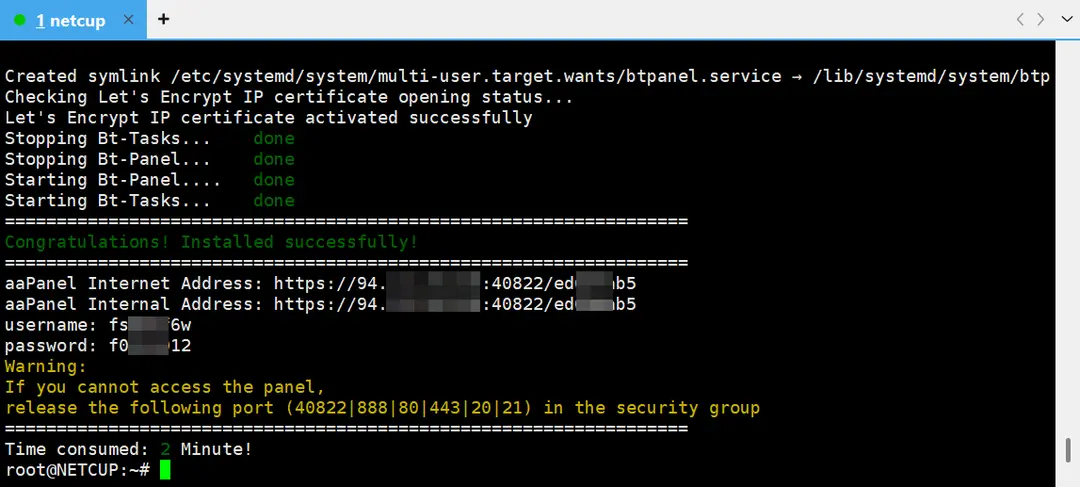
Operations in the aaPanel Dashboard
The aaPanel English version offers a Chinese interface option during login, or you can switch languages from the top-right corner after logging in. You can also bind a Google account for login upon first access.
- Installing the Web Server Environment
After logging into aaPanel, a recommended software suite installation window will pop up. It's best to choose the left option for installing multiple web servers. If you directly select OLS + MySQL + PHP, you might encounter various compatibility issues.
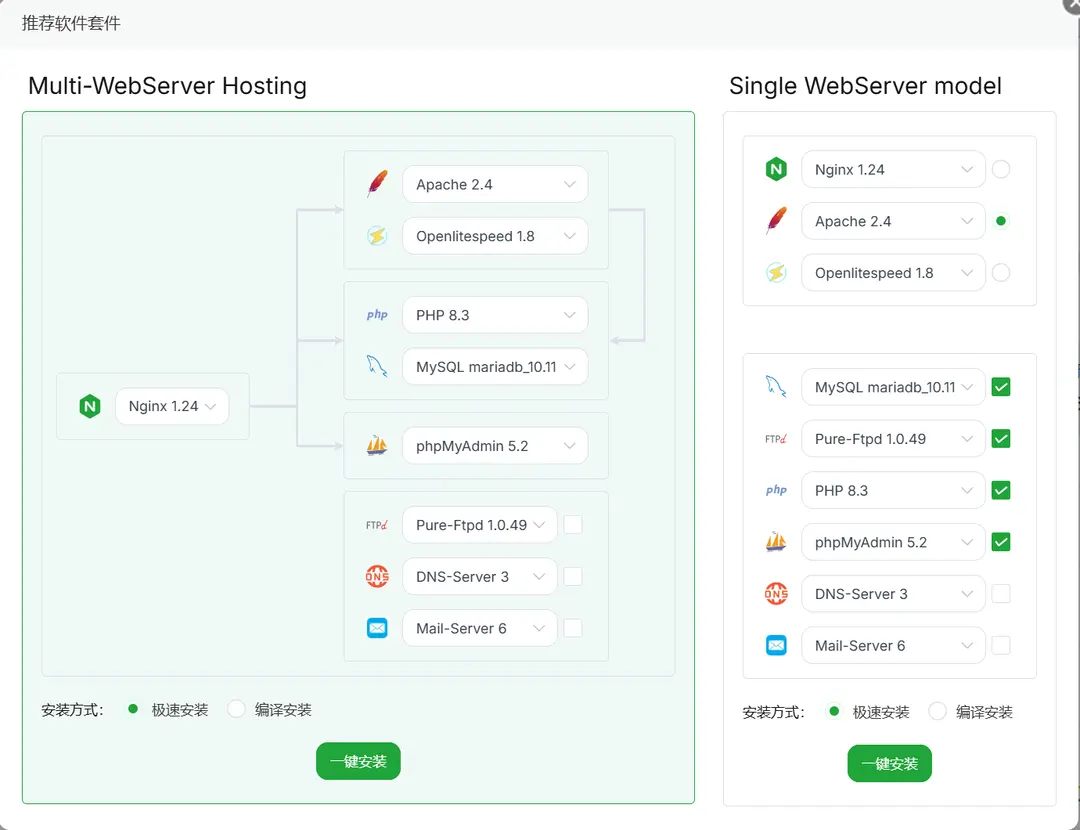
As shown, the default installation includes Nginx 1.24, Apache 2.4, OpenLiteSpeed 1.8.3, and PHP 8.3. Due to the 1C1G VPS performance and network conditions, the installation process may take several tens of minutes. After installation, memory usage is approximately 310MB.
- Installing WordPress
Compared to the one-click WordPress installation in the Chinese version of Baota, installing WordPress in the English version (aaPanel) is slightly different but still straightforward.
After the environment installation in the previous step, the panel will prompt you to bind an account (you can usually choose to bind a Google account). Then, go to the left sidebar, find "WP Toolkit," and add a WordPress site, configuring it according to your needs.
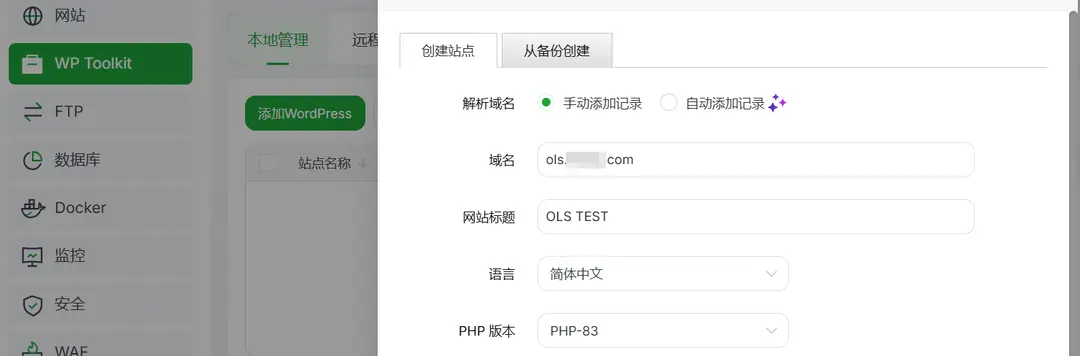
- Restoring the Original WordPress Site Content
Once WordPress is installed, the site should be accessible. To restore your original site, follow these three steps:
- Point your domain's A record to the new server's IP address and configure necessary SSL settings in aaPanel (if required).
- In the aaPanel "Files" manager, replace the contents of the new site's
wp-contentfolder with your backed-upwp-contentdata. - In the new WordPress site's dashboard, import the previously backed-up
.xmlfile and reactivate your original theme.
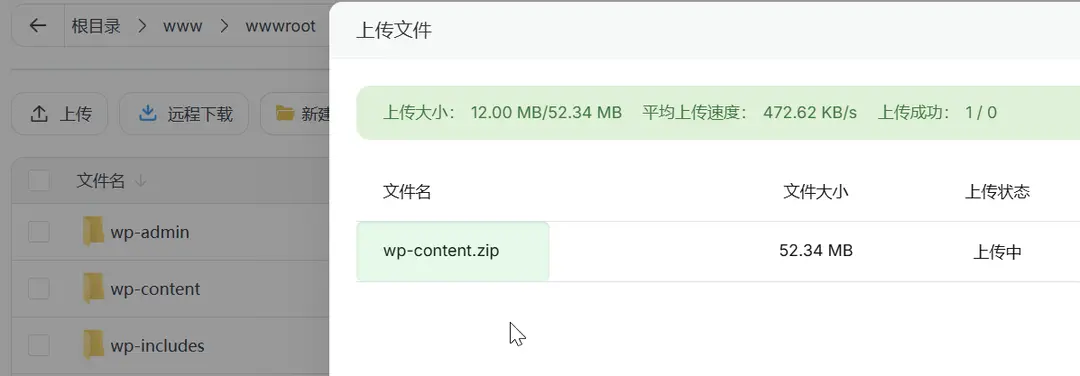
Verify the accessibility of the new site. At this point, memory usage might exceed 450MB.
- Switching to the OpenLiteSpeed Environment
In the aaPanel "App Store" under "Installed," find Nginx settings. Disable the "Multiple Web Server Hosting" mode and select the "OpenLiteSpeed Single Web Server" mode.
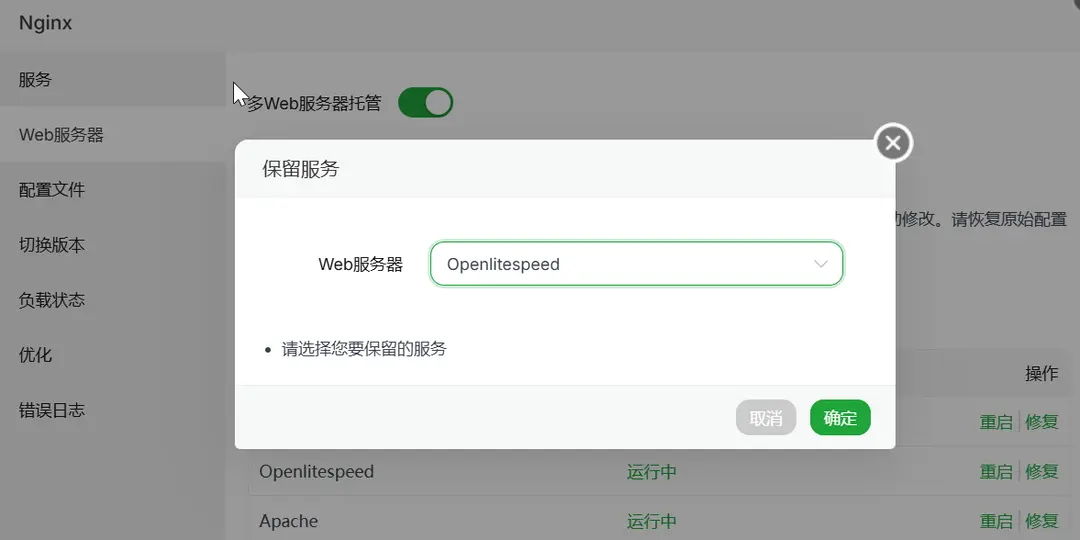
At this stage, your WordPress site should still function normally. Memory usage might decrease by around 50MB.
- Installing the SQLite Plugin
Previously, WordPress SQLite integration was part of the Performance Lab plugin, but it later became a standalone plugin called "SQLite Database Integration." Search for and install it from the WordPress plugin directory.
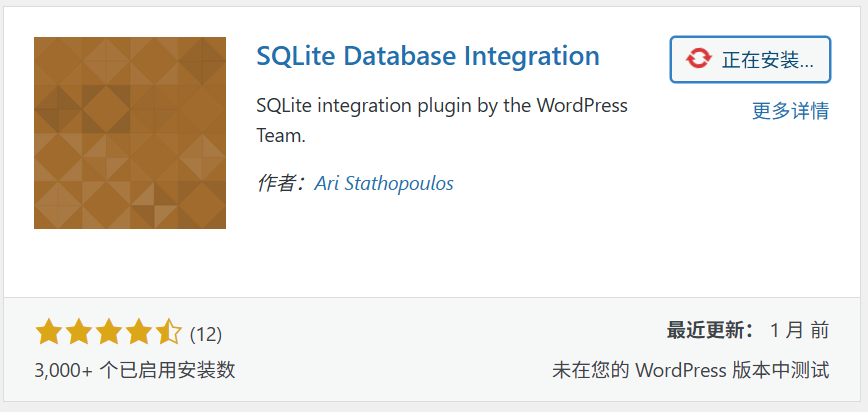
After installing the plugin, the interface will prompt you to start using SQLite immediately. Click confirm, and you will be taken through the WordPress installation process again.
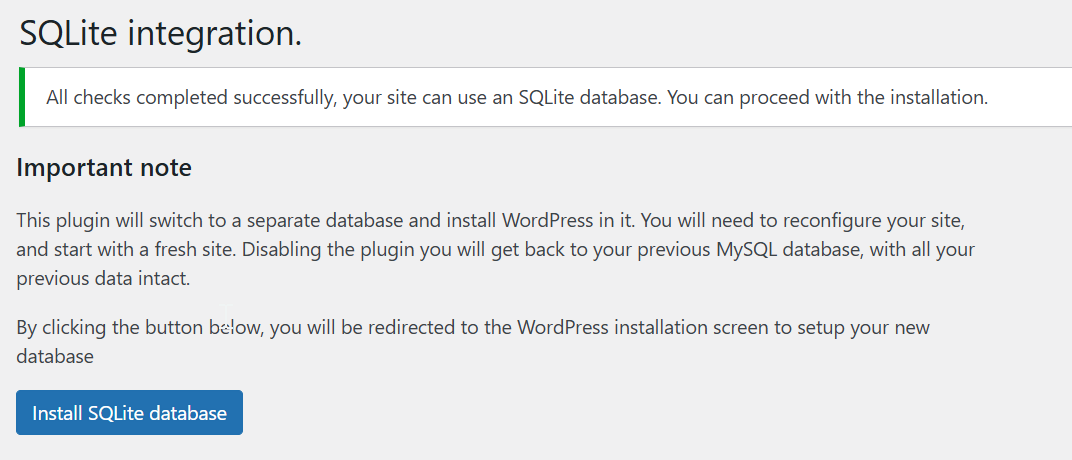
Don't panic when you see this; your data is not lost. You simply need to re-import the .xml file. At this point, you should notice a significant improvement in website access speed.
The reason for this extra step is primarily to accommodate users who might not be comfortable with SQLite. If you decide not to use it, simply uninstall the plugin and delete the
wp-content/db.phpfile, and the site will automatically switch back to MySQL. Generally, for low-performance VPS, the main advantage of SQLite over MySQL is lower server resource consumption. The downside is that it's less convenient to manage than MySQL, with slightly more difficulty in backup and modification.
- Uninstalling Unnecessary Software like PHP and MySQL
Since OpenLiteSpeed has LSPHP built-in and SQLite has replaced MySQL, you can now uninstall the redundant software to allow the server to run more lightly.
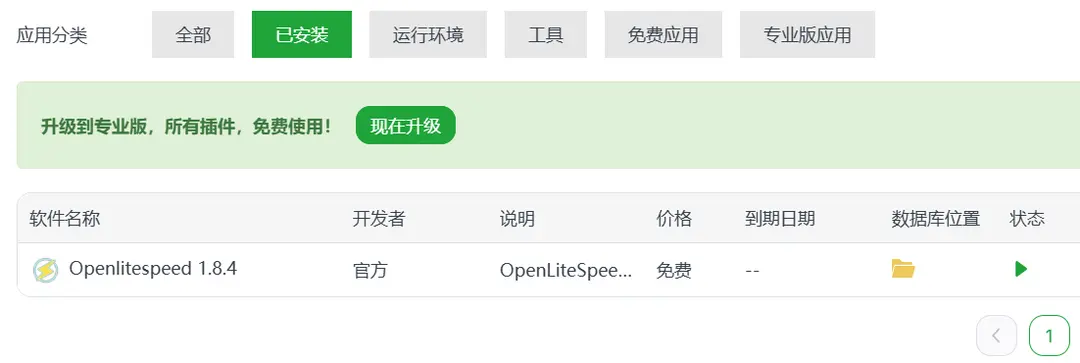
Finally, in the aaPanel App Store's "Installed" section, you only need to keep OpenLiteSpeed for WordPress to run normally. After uninstalling other components, you can reboot the VPS. Upon reboot, OLS + WordPress will start automatically, but the aaPanel service will be disabled by default. Memory usage at this point should be around 170MB.
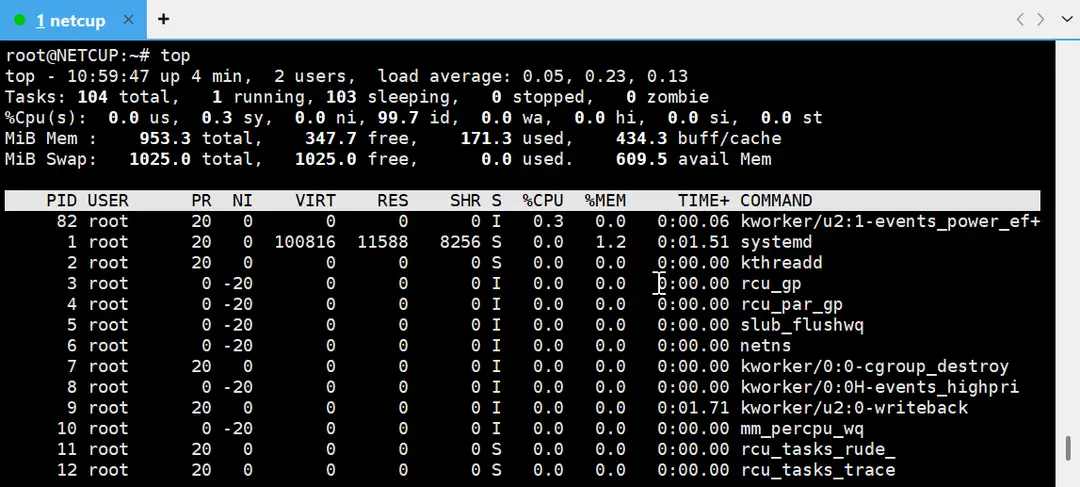
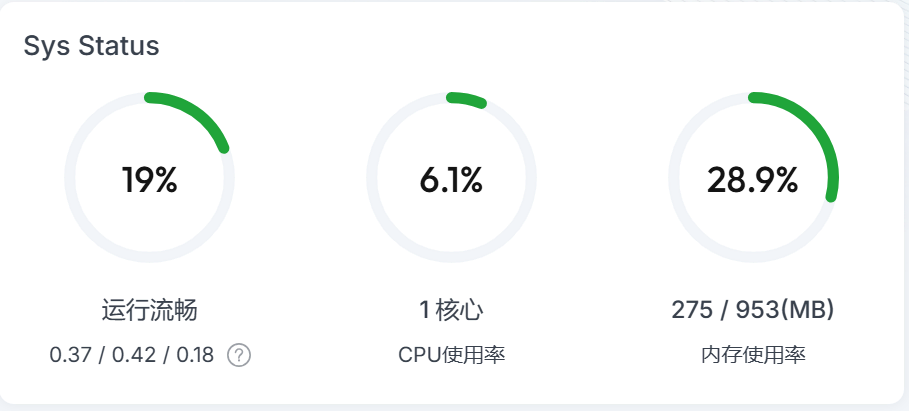
If you need to start the aaPanel service, simply enter the bt command in the terminal and select option 1. With aaPanel + OLS + WordPress running, memory usage is approximately 270MB.
Optimizing OLS + WordPress
As the optimal solution for WordPress speed optimization, OLS can be further enhanced by using Quic.cloud or Jetpack CDN. For individual users, the free tier monthly quota is often sufficient. The main plugins involved are LiteSpeed Cache and Jetpack; it's recommended to use only one at a time.
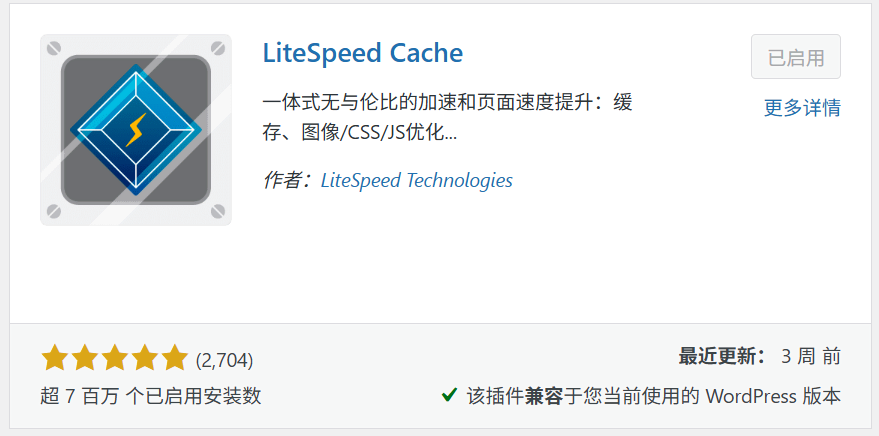
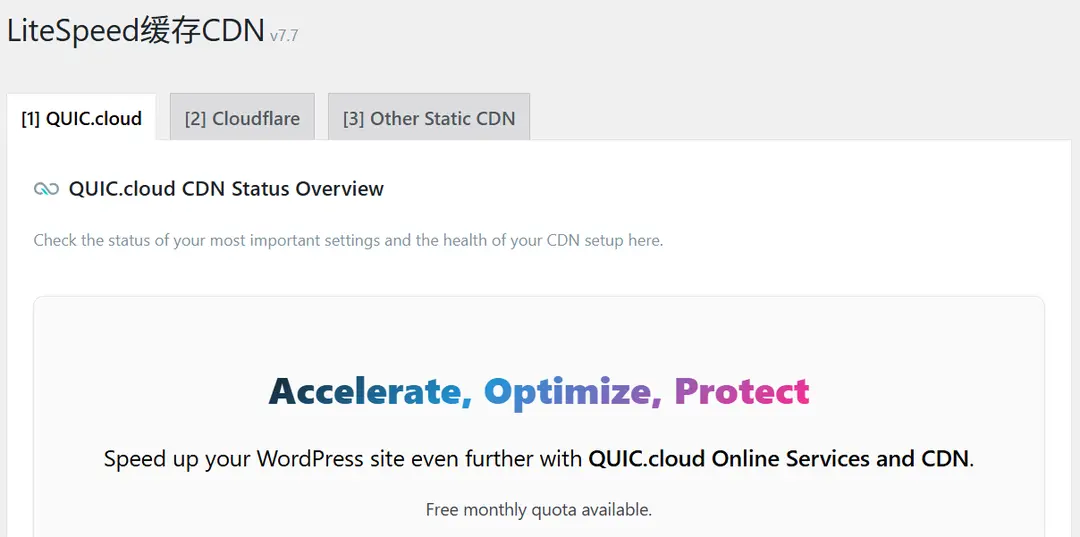
The LiteSpeed Cache plugin integrates Quic.cloud CDN, which offers a free monthly quota upon registration.
The official WordPress Jetpack plugin includes a static image CDN that offers unlimited traffic acceleration (though it might sometimes be inaccessible from within China).
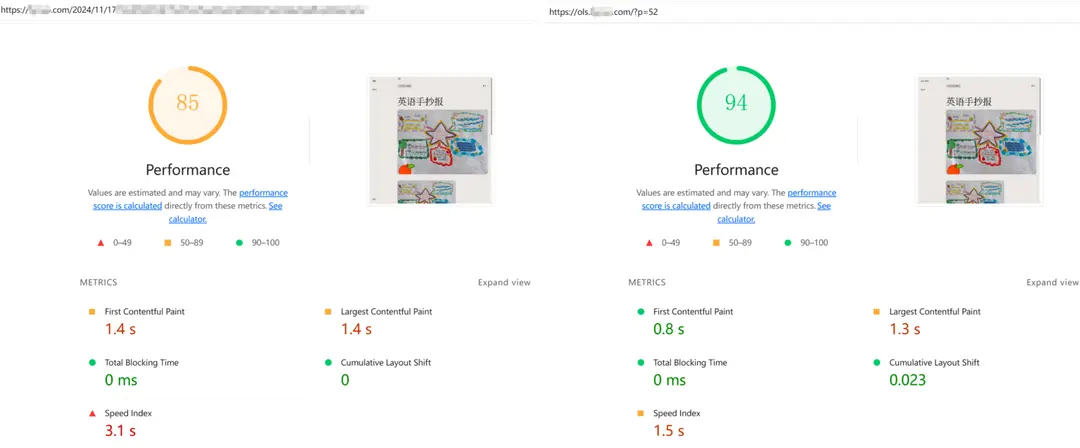
I ran a quick Lighthouse test on the same page for comparison. The left score (85) is from the original site running on a 4C24G Oracle Cloud server with Nginx + MySQL, with Jetpack Boost and CDN enabled. The right score (94) is from the new site running on a Netcup 1C1G server with OpenLiteSpeed + SQLite, using the LiteSpeed Cache plugin (CDN not enabled).
#tutorial #wordpress #vps #openlitespeed #sqlite #aapanel